
How to Automate Google Sheets with n8n (No-Code Tutorial)
Here’s a scene I bet you know well: someone on your team (or maybe it’s you) manually copying data into a Google Sheet. New lead comes in — type it into the sheet. Order gets placed — type it into the sheet. Form gets submitted — type it into the sheet. It’s the kind of task that feels small in the moment but eats hours every single week, and it’s exactly the kind of thing that makes me twitch a little every time I see it happening at a client’s office.
Google Sheets automation with n8n is one of the first workflows I show new clients, because it’s simple enough to build in an afternoon but genuinely changes how a team works. No more copy-pasting. No more “did someone already add this row?” No more data entry mistakes at 5pm on a Friday. Let’s build one together.
What You’ll Need Before Starting
- An n8n account (cloud or self-hosted — either works for this tutorial)
- A Google account with access to Google Sheets
- A Google Sheet you want to automate (or create a blank one to practice on)
That’s genuinely it. You don’t need to know how to code for any of this.
Step 1: Create a New Workflow in n8n
Log into n8n and click “New Workflow.” You’ll land on a blank canvas — this is where you’ll build your automation by connecting nodes together, kind of like snapping puzzle pieces into place. Don’t overthink the blank canvas; every automation starts here, even the complicated ones.
Step 2: Connect Your Google Account to n8n
Before n8n can touch your Google Sheet, it needs permission. Add a Google Sheets node to your canvas (search for it in the node panel on the left), and when you configure it, you’ll be prompted to connect a Google account.
Click “Create New Credential,” and n8n will walk you through Google’s standard OAuth sign-in — the same “Allow this app to access your Google account” screen you’ve seen a hundred times with other apps. Sign in, grant access, and you’re connected. This is a one-time step; every future workflow can reuse this same connection.
Step 3: Pick Your Trigger — What Starts the Automation?
Every n8n workflow starts with a trigger, which is just a fancy word for “the thing that kicks this off.” A few common triggers people use with Google Sheets automations:
- A new form submission (Google Forms, Typeform, or a form on your website)
- A webhook from another app (like a new order from your WooCommerce store)
- A schedule (say, checking an email inbox every 15 minutes)
- A new row added manually, if you’re automating what happens after someone enters data
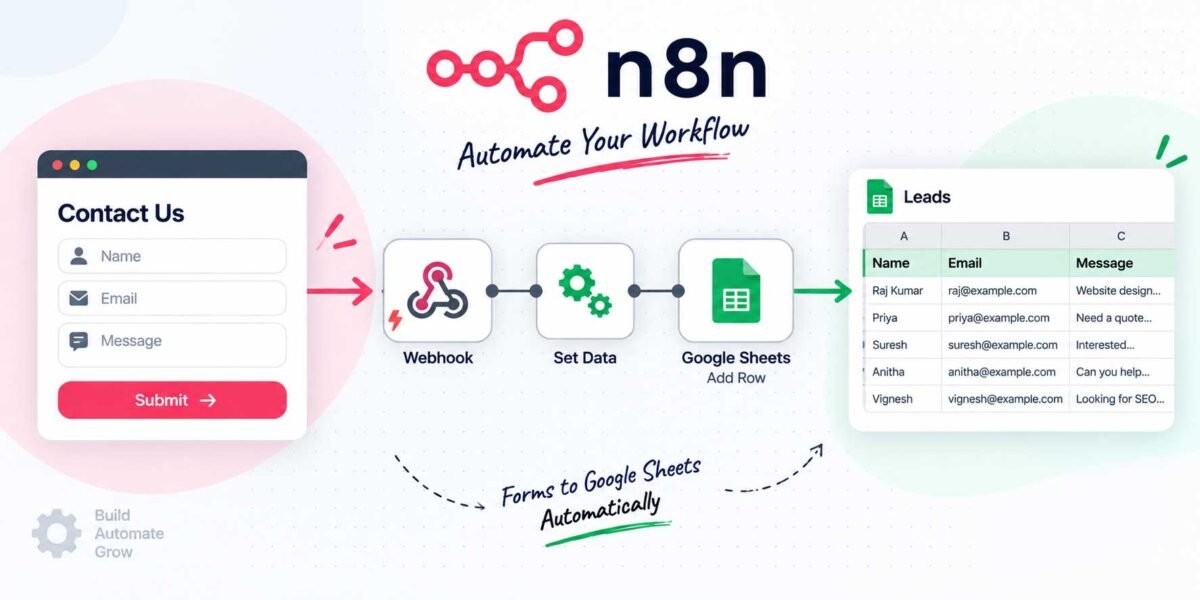
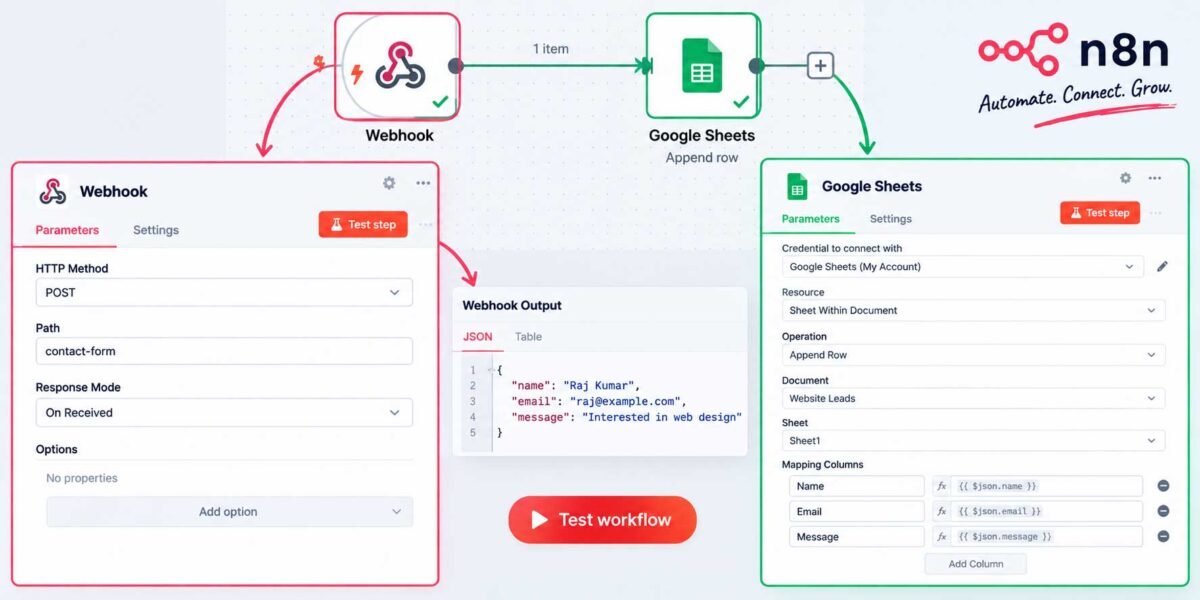
For this tutorial, let’s use a simple and genuinely useful example: automatically adding new leads from a website contact form into a Google Sheet. So our trigger will be a Webhook node — n8n gives you a unique URL that your form (or another app) sends data to whenever someone submits it.
Drag a Webhook node onto the canvas, and n8n will generate a URL for you. This is the address you’ll point your form’s submission settings to.
Step 4: Add the Google Sheets Node to Write Data
Now for the part that actually does the work. Add a Google Sheets node after your trigger, and connect the two by dragging a line between them (n8n makes this satisfyingly obvious — you’ll see the connection snap into place).
Configure the Google Sheets node like this:
- Operation: Choose “Append Row” — this adds a new row to your sheet rather than overwriting anything.
- Spreadsheet: Select the specific Google Sheet you want to write to from the dropdown.
- Sheet: Pick the specific tab within that spreadsheet (most sheets default to “Sheet1”).
- Values to Send: This is where you map the data. If your webhook is receiving a name, email, and message from a contact form, you’ll map each of those fields to the matching column in your sheet.
n8n shows you a live preview of the incoming data from your trigger, so mapping fields feels more like drag-and-drop than guesswork — you can literally see “name” coming in and point it at your “Name” column.
Step 5: Test the Workflow
Click “Execute Workflow” (or the test button, depending on your n8n version) and submit a test entry through your form. Watch what happens: the data should flow through the webhook, into the Google Sheets node, and land as a new row in your spreadsheet within a couple of seconds.
If something doesn’t show up, don’t panic — this is completely normal on a first build. Click on each node in the workflow and check the “Output” tab; n8n shows you exactly what data came in and went out at every single step, which makes troubleshooting far less painful than it sounds.
Step 6: Activate the Workflow
Once your test row shows up correctly, flip the switch in the top-right corner from “Inactive” to “Active.” That’s it — your automation is now live and will run every time a new submission comes in, whether you’re at your desk or asleep.
Bonus: A Few Ways to Take This Further
Once you’ve got the basic flow working, here are some upgrades worth trying:
- Send a Slack or email notification whenever a new row is added, so your team knows instantly without checking the sheet.
- Add a filter node so only certain submissions (say, leads from a specific country or budget range) get added.
- Two-way sync — read from the sheet and update another app, or vice versa, so your Google Sheet becomes a live source of truth instead of a one-way dump.
- Deduplicate entries by checking if a row with the same email already exists before appending, so you don’t end up with the same lead added twice.
None of these require starting over — you’re just adding more nodes onto the workflow you already built.
Why This Beats a Zapier or Make Equivalent (For Some People)
I’ll be honest with you: you could build this exact automation in Zapier or Make too, and for a single simple workflow like this, any of the three will work fine. Where n8n starts to pull ahead is when you want to add more logic — conditional branches, custom code steps, higher volume — without watching your monthly bill climb every time you add a step. If you’re just testing the waters with automation, this tutorial works the same way in any of them. If you think you’ll be building more of these over time, n8n is worth getting comfortable with early.
Wrapping Up
That’s genuinely the whole process — no code, no plugins, just connecting a few nodes together. Once you’ve built one Google Sheets automation, the next one takes half the time, because the pattern (trigger → process → write to sheet) shows up again and again across totally different use cases: inventory tracking, expense logging, appointment booking, you name it.
Want this set up for your business but don’t want to build it yourself? Get in touch and I’ll build out your Google Sheets automation — and anything else you’re still doing by hand — so you can get back to actually running your business.