
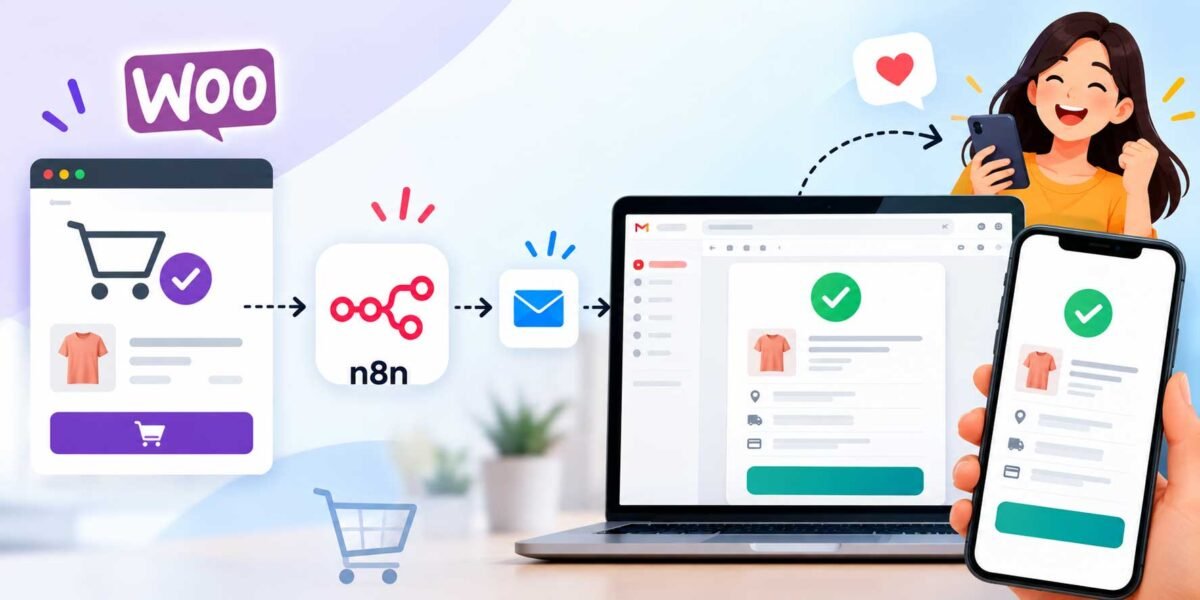
How to Automate Order Confirmation Emails in WooCommerce
Picture this: someone just bought something from your store. They’re a little excited, maybe a little nervous (did the payment actually go through?), and they’re staring at their inbox waiting for that little ping that says “yep, you’re all set.” That confirmation email isn’t just admin busywork — it’s the moment you either reassure a customer or leave them wondering if they just got scammed.
I’ve audited a surprising number of WooCommerce stores where this email either doesn’t go out reliably, looks like it was slapped together in 2014, or says absolutely nothing useful beyond “thank you for your order.” That’s a missed opportunity, and also, honestly, a support-ticket generator — because when people don’t get a confirmation, they email you asking “did my order go through?” and now you’re doing manual work that should’ve been automatic.
Let’s fix that properly. I’ll walk you through WooCommerce’s built-in email automation first (because most stores just need this configured correctly), and then show you how to level it up with n8n if you want more control, better design, or extra logic that WooCommerce alone can’t handle.
Why the Default WooCommerce Emails Are Often Underused
Here’s something a lot of store owners don’t realize: WooCommerce already sends order confirmation emails automatically, out of the box, the moment someone completes checkout. The problem isn’t usually that automation is missing — it’s that the emails are badly configured, ugly, or not fully set up to trigger correctly for every payment method and order status.
So before you go reaching for extra plugins or automation tools, let’s make sure the foundation is solid.
Part 1: Setting Up WooCommerce’s Built-In Order Emails Properly
Step 1: Find Your Email Settings
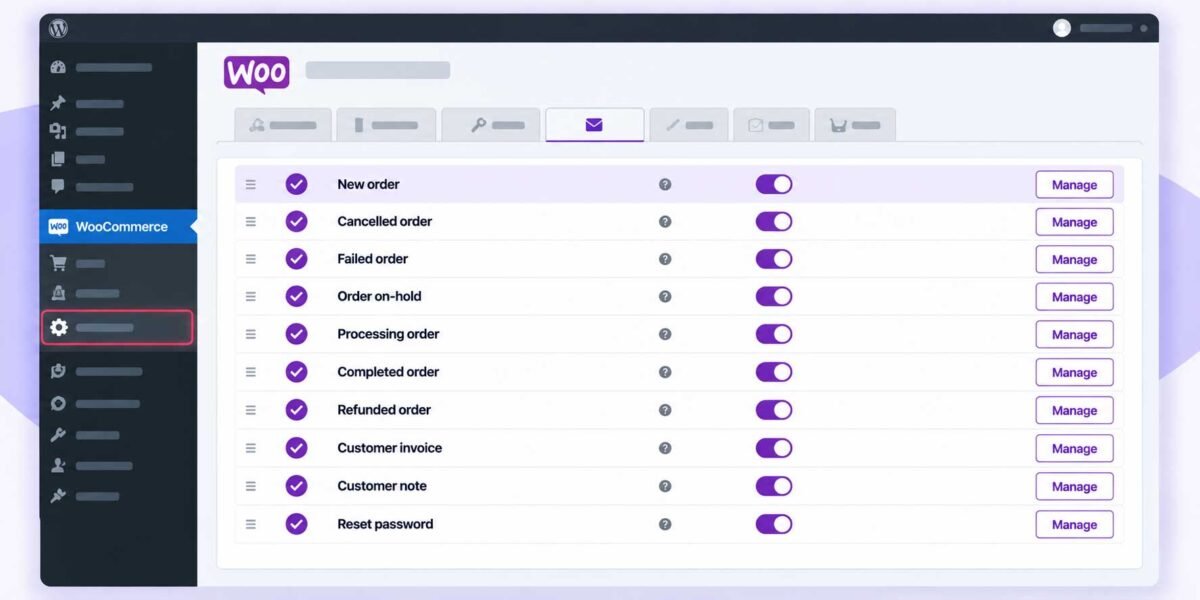
In your WordPress dashboard, go to WooCommerce → Settings → Emails. You’ll see a list of every transactional email WooCommerce can send — including the one we care about most here: “Processing Order” (this is the one that fires right after a successful, paid order) and “Order Confirmation” / “New Order” depending on your WooCommerce version.
Step 2: Turn On the Right Emails
Make sure “Processing order” is enabled — this is the actual order confirmation email your customer expects to receive within seconds of paying. A lot of stores accidentally have this disabled or misconfigured, especially after a theme or plugin update reset some settings.
Click into it and check:
- Enable/Disable: Toggled on
- Subject: Personalize it — instead of the generic default, something like “Your order #{order_number} is confirmed! 🎉” feels warmer and gets opened faster
- Email heading: Same idea — make it sound like a real person wrote it, not a robot
Step 3: Customize the Email Template
Click “Manage” next to any email type, and further down in WooCommerce’s email settings you’ll find the Email Sender Options and Email Template sections. Here’s where you can:
- Upload your logo so the email looks like it actually came from your brand
- Set your base color to match your site instead of WooCommerce’s default purple
- Add a footer with your contact info, social links, or a return policy note
This step alone takes maybe ten minutes and instantly makes your store feel more legitimate and trustworthy — which matters more than people think when it comes to reducing “is this a scam?” hesitation from first-time buyers.
Step 4: Test It
Place a real test order (use a test/free product, or WooCommerce’s test payment gateways if you have one enabled) and actually watch the email land in your inbox. Check it on both desktop and mobile — a shocking number of order emails look broken on phones because nobody ever previewed them there.
Part 2: Leveling Up with n8n (For More Control)
WooCommerce’s built-in emails cover the basics well, but they’re limited — you can’t easily add conditional logic (like sending a different email for first-time customers vs. repeat buyers), sync order data to other tools, or design something more custom than what WooCommerce’s editor allows. That’s where n8n comes in.
Step 1: Connect WooCommerce to n8n
In n8n, add a WooCommerce node (or use a Webhook if you’re triggering from WooCommerce’s built-in webhook settings under WooCommerce → Settings → Advanced → Webhooks). Set the webhook to fire on the “Order updated” or “Order created” event, and point it to the webhook URL n8n generates for you.
Step 2: Add a Filter for “Paid” Orders Only
Add an IF node right after your trigger to check that the order status is actually “processing” or “completed” — not “pending” or “failed.” This makes sure you’re only sending confirmation emails for orders that genuinely went through, instead of every checkout attempt.
Step 3: Build a Custom Email
Add an Email node (or connect to Gmail/SendGrid/Mailgun, whichever you use) and design the actual message. This is where n8n really shines over WooCommerce’s default editor — you can pull in dynamic order details (customer name, items purchased, shipping address, estimated delivery date) and format them however you want, including HTML templates that actually match your brand design pixel for pixel.
Step 4: Add Extra Logic (Optional, But Worth It)
Since you’re already routing order data through n8n, this is a great spot to add small but genuinely useful extras:
- Notify your team on Slack whenever a high-value order comes in
- Add the customer to your email marketing list automatically
- Send a different, warmer email to first-time customers with a small discount code for their next order
- Log every order into a Google Sheet for easy reporting without touching your store’s admin
None of this replaces WooCommerce’s core emails — think of it as running alongside them, handling the smarter, more personalized stuff that WooCommerce alone can’t do.
Which Approach Should You Use?
If your store is straightforward and you just need reliable, good-looking confirmation emails, Part 1 alone is probably enough — and it takes fifteen minutes, not a whole afternoon. If you’re running a growing store and want smarter automation (segmented emails, team notifications, marketing sync), add Part 2 on top. You don’t have to choose one or the other; most of the stores I set up end up using both together.
A Quick Gut-Check Before You Go Live
Whichever route you take, always place a real test order before trusting the system. Check that:
- The email actually arrives (check spam folders too — new sending setups sometimes land there at first)
- All the order details show up correctly (products, totals, shipping info)
- It looks right on mobile, not just desktop
- The “from” address looks legitimate and matches your domain, not a generic no-reply@wordpress address
Get those four things right, and your customers get exactly what they’re looking for the second they hit “buy” — peace of mind that their order actually went through.
Want your WooCommerce emails looking sharp and firing off custom logic like this automatically, without doing the setup yourself? Get in touch and I’ll handle the whole thing — from email design to the automation behind it.