
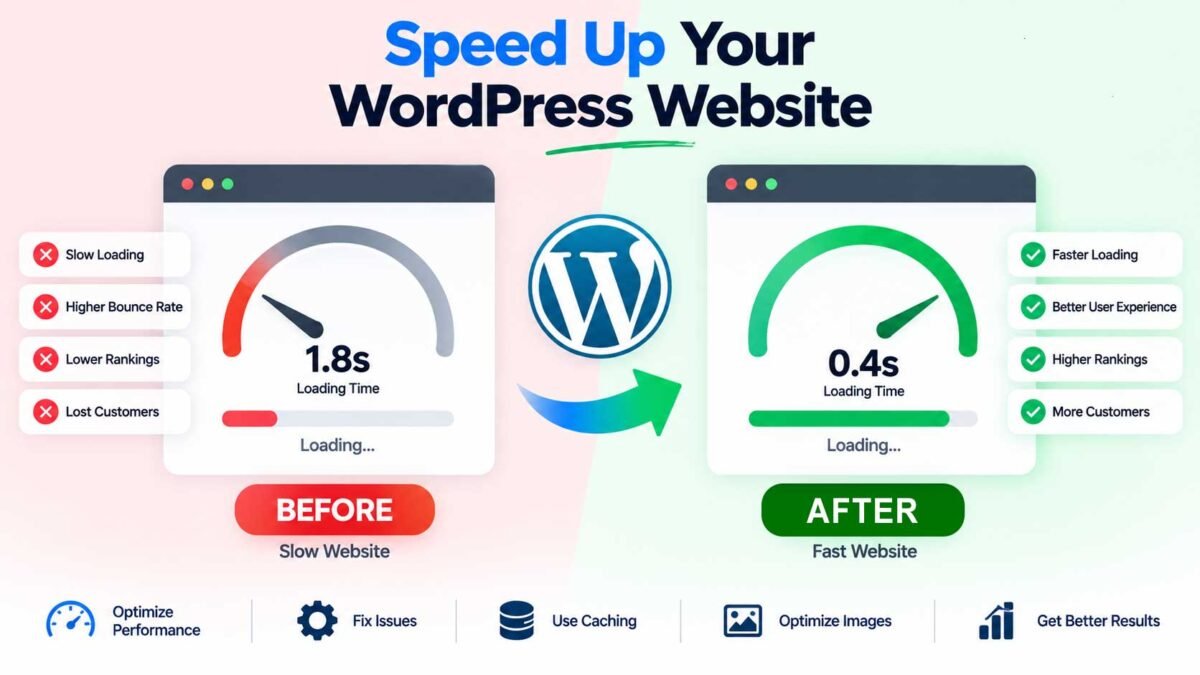
How to Speed Up a Slow WordPress Website (Step-by-Step)
Let’s be honest about something first: a slow website isn’t just annoying, it’s costing you money right now, today, while you’re reading this. Every extra second your site takes to load, you’re losing visitors who just… leave. No error message, no complaint, they just close the tab and go to a competitor. I’ve seen it in analytics dashboards more times than I’d like to admit — a beautiful site, great content, and a bounce rate that tells the real story.
The good news? Fixing a slow WordPress site is rarely about some mysterious, unsolvable problem. Nine times out of ten, it’s the same handful of culprits. I’ve cleaned up dozens of sluggish WordPress sites over the years, and I’m going to walk you through the exact process I use — in the order I actually do it — so you can go from “why is this taking forever” to “wow, that loaded instantly.”
Grab a coffee. Let’s fix this.
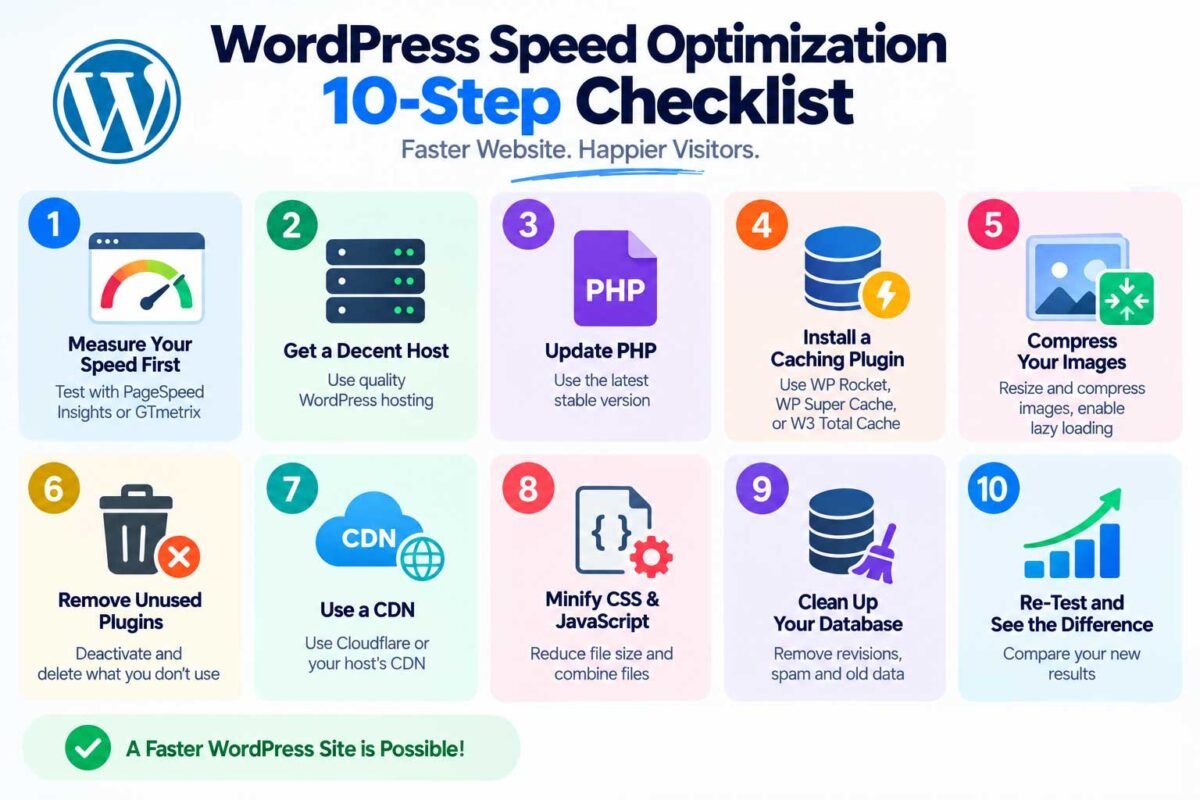
Step 1: Actually Measure Your Speed First
Before you touch anything, find out where you actually stand. Don’t guess — test it. Head over to Google PageSpeed Insights or GTmetrix and run your homepage through it. Do this before making any changes, because you need a “before” number to know if what you’re doing is actually helping.
Pay attention to two things specifically: your Largest Contentful Paint (LCP) — basically, how long it takes for the main content to show up — and your overall load time. Write these numbers down somewhere. You’ll want to compare after each fix below.
Step 2: Get a Decent Host (This Fixes More Than You’d Think)
I know, I know — nobody wants to hear “just switch hosts,” especially if you just paid for a year of hosting. But I have to be straight with you here: a huge chunk of the “slow WordPress site” complaints I get called in to fix trace back to cheap, overcrowded shared hosting. When your site is sharing server resources with hundreds of other sites, no amount of caching plugins will save you.
You don’t need to go overboard — you don’t need the most expensive plan available. But look for hosting that’s actually built for WordPress, with decent server resources and, ideally, a host that supports modern PHP versions (more on that below) and has good server-side caching baked in.
Step 3: Update PHP to the Latest Stable Version
This one’s free, takes five minutes, and genuinely surprises people with how much it helps. Older PHP versions are slower and, honestly, a security risk too — Wordfence flags this constantly during my security audits. Most hosting panels let you switch PHP versions with a couple of clicks under something like “PHP Configuration” or “Select PHP Version.”
Before switching, just double-check with your theme and plugin developers (or a quick backup) that everything’s compatible — but for most modern WordPress setups, jumping to the latest stable PHP release is safe and gives you a noticeable speed bump for zero cost.
Step 4: Install a Real Caching Plugin
Caching is where the biggest visible improvement usually happens. Without caching, WordPress rebuilds every single page from scratch every time someone visits — running database queries, processing PHP, assembling the page — over and over, for every visitor. A caching plugin generates that page once and serves the saved (static) version to everyone after, which is dramatically faster.
Plugins like WP Rocket, WP Super Cache, or W3 Total Cache all do this job well. Install one, turn on page caching, and you’ll often see your load time drop noticeably on the very first test after activating it.
Step 5: Compress and Resize Your Images
Images are, almost every single time, the single biggest weight on a slow page. I can’t count how many sites I’ve opened up where someone uploaded a 4MB photo straight from their phone camera and used it as a blog header, displayed at a fraction of that size on-screen.
Two things to fix this:
- Resize before you upload. If the image only needs to display at 800px wide, don’t upload a 4000px original.
- Compress automatically. Use a plugin like Imagify or ShortPixel to compress images as you upload them, and run a bulk compression pass on your existing media library.
Also worth turning on: lazy loading, so images below the fold don’t load until a visitor actually scrolls to them. Most modern caching plugins and even WordPress core handle this automatically now, but it’s worth double-checking it’s active.
Step 6: Clean Out Plugins You Don’t Actually Use
Every plugin adds some amount of code that has to load, and a lot of sites accumulate plugins the way a junk drawer accumulates junk — installed for a “quick test” two years ago and never removed. Go through your plugin list and genuinely ask, for each one: am I using this right now?
If not, deactivate it, then delete it completely — an inactive plugin’s files still sit on your server and can still be a security liability, not just a speed one. This is one of the fastest wins on this whole list because it takes minutes and directly reduces what has to load on every page.
Step 7: Use a Content Delivery Network (CDN)
A CDN stores copies of your site’s static files (images, CSS, JavaScript) on servers spread out around the world, so visitors load those files from a server physically closer to them instead of from your single hosting location. If you have visitors outside your host’s region, this makes a real difference.
Cloudflare‘s free plan is a solid starting point and takes maybe fifteen minutes to set up. Many hosts also offer built-in CDN integration — check your hosting dashboard before setting one up manually.
Step 8: Minify and Combine CSS/JavaScript Files
This is a more technical step, but most good caching plugins (like WP Rocket) include this as a built-in option, so you often don’t need a separate plugin for it. Minifying strips out unnecessary characters and whitespace from your code files, and combining reduces the number of separate files the browser has to request. Turn this setting on in your caching plugin and test your site afterward — occasionally it can cause visual glitches with certain themes, so check your pages after enabling it.
Step 9: Clean Up Your Database
Over time, your WordPress database fills up with clutter: post revisions, spam comments sitting in the trash, expired transients, old plugin data left behind from things you’ve since deleted. None of this shows up on your site, but it does slow down every database query. Plugins like WP-Optimize or Advanced Database Cleaner can clear this out safely, and it’s worth doing every few months as routine maintenance, not just a one-time fix.
Step 10: Re-Test and See the Difference
Go back to PageSpeed Insights or GTmetrix and run the same test you ran in Step 1. Compare the numbers. In my experience, working through this list on a genuinely neglected site usually cuts load times in half, sometimes more — and that’s before you get into more advanced, developer-level optimization.
A Quick Reality Check
Not every slow site needs every single step here. Sometimes it’s one glaring issue — a bloated hosting plan or a folder of 5MB product photos — and fixing that one thing solves 80% of the problem. Other times it’s death by a thousand small cuts, and you genuinely do need to work through the whole list. Either way, start with Step 1 (measure it), work down the list in order, and re-test as you go so you actually know what’s helping.
Not sure where your site’s biggest bottleneck actually is, or don’t have the time to dig through all of this yourself? Get in touch and I’ll run a full speed audit and take care of the fixes for you.