
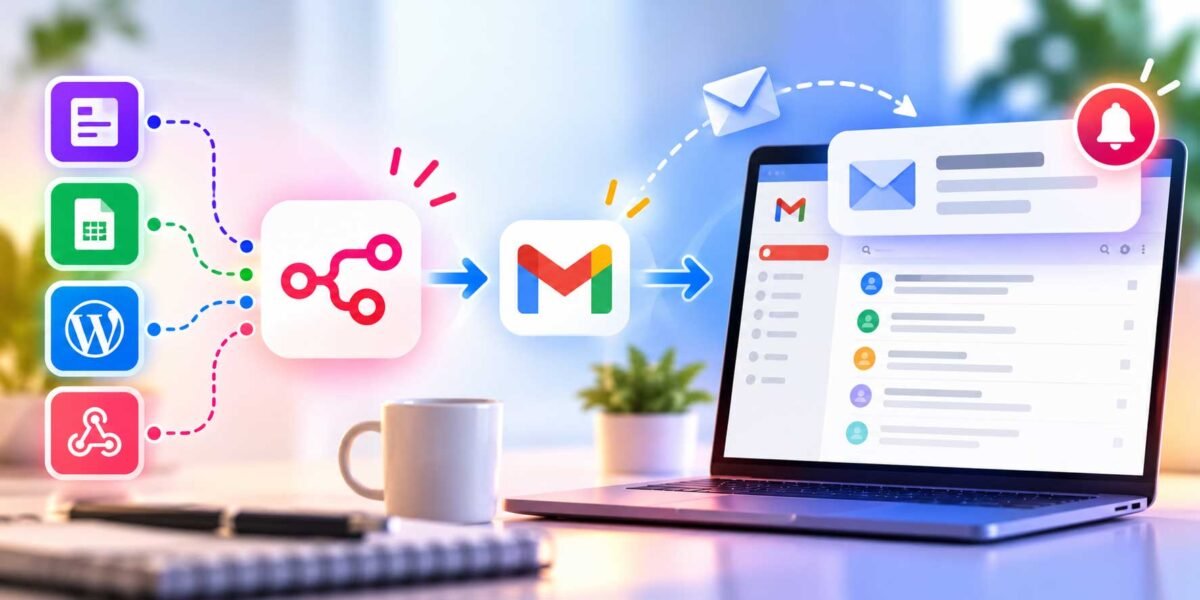
How to Send Automated Email Notifications with n8n and Gmail
You know that feeling when something important happens in your business — a big order comes in, a form gets submitted, a server throws an error — and you only find out about it hours later because nobody checked the right dashboard? I’ve lived that exact scenario more times than I’d like to admit, and it’s completely avoidable with about fifteen minutes of setup.
Automated email notifications are one of the very first workflows I build for almost every client, because the payoff is instant and obvious. You stop checking things manually, and instead, the right information lands in your inbox the moment it matters — not an hour later, not “whenever I remember to look.” Let’s build this together, step by step, using n8n and Gmail.
What We’re Actually Building
To keep this practical rather than abstract, we’ll build a real example: automatically emailing yourself (or your team) whenever a new order or lead comes in. Once you understand this pattern, you can point it at almost anything — server errors, form submissions, low stock alerts, payment failures, you name it. The structure stays the same; only the trigger changes.
What You’ll Need
- An n8n account (cloud or self-hosted, doesn’t matter for this tutorial)
- A Gmail or Google Workspace account
- Something to trigger the notification (we’ll use a webhook, but this works the same with a form, a database check, or another app’s trigger)
No coding required for any of this — just connecting a few nodes together.
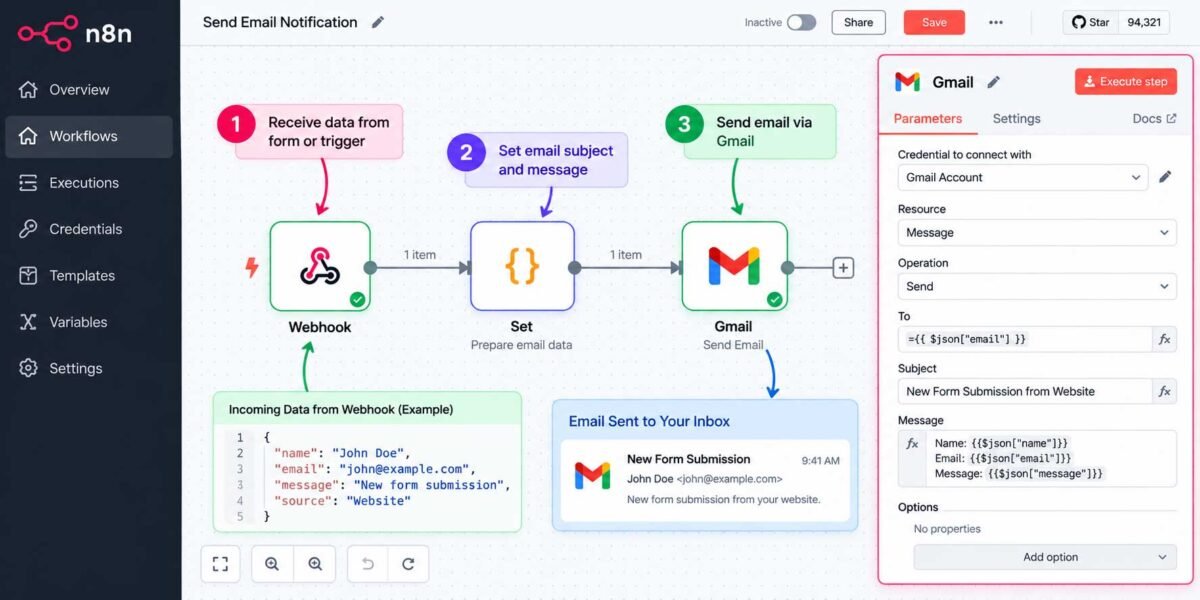
Step 1: Create Your Workflow and Add a Trigger
Open n8n and click New Workflow. Drag a Webhook node onto the canvas — this gives you a unique URL that n8n listens on, ready to receive data the moment something happens elsewhere (a form submission, a new order from your store, a signal from another automation).
If you’re testing this out before connecting it to a real form or app, that’s fine — n8n lets you fire test data at the webhook manually so you can see the whole workflow run end to end before it goes live.
Step 2: Connect Gmail to n8n (The Part Everyone Gets Stuck On)
This is genuinely the step that trips people up most, so let’s go slow here.
Add a Gmail node to your canvas, and when you configure it, click “Create New Credential.” n8n will prompt you to sign in with Google and grant permission — the same OAuth screen you’ve seen a hundred times with other apps. A couple of things worth knowing before you click through:
- Use the account you actually want sending these emails. If you want notifications to come from a dedicated “alerts@yourbusiness.com” address rather than your personal Gmail, sign in with that account specifically.
- If Google shows an “unverified app” warning, that’s normal for a fresh n8n connection — click “Advanced” and then “Go to (your workflow) anyway.” This isn’t a security problem, it’s just Google being cautious about apps that haven’t gone through their full verification process, which isn’t necessary for your own personal automation use.
- Grant the permissions it asks for. n8n needs access to send email on your behalf, which is exactly what the Gmail node’s permission request is for — nothing more.
Once connected, this credential is saved in n8n and reusable across every future workflow — you won’t have to repeat this step again.
Step 3: Configure What the Email Actually Says
With the Gmail node connected to your Webhook trigger, set the node’s operation to “Send” and fill in:
- To: Your email address (or your team’s, or a distribution list)
- Subject: Make this genuinely useful at a glance — something like “🔔 New Order Received – #{{ $json.order_id }}” rather than a generic “Notification.” You want to know what happened without even opening the email.
- Message: This is where n8n’s dynamic data mapping becomes genuinely satisfying to use. Instead of a static message, you can pull in the actual details from your trigger — customer name, order total, timestamp — so every email is specific and useful, not a generic “something happened” ping.
A message like this works well:
New order just came in! Customer: {{ $json.customer_name }} Order Total: {{ $json.order_total }} Time: {{ $json.timestamp }}
Those {{ }} bits are n8n pulling live data from whatever triggered the workflow, so every notification is automatically filled in correctly — no manual typing, ever.
Step 4: Test It Before You Trust It
Click Execute Workflow and send a test payload through your webhook (n8n’s built-in test feature makes this easy, or you can submit a real test order/form if you’re connecting this to a live source). Check your inbox. If the email doesn’t show up within a few seconds, check:
- Spam folder — first-time automated senders occasionally land there before Gmail “trusts” the pattern
- The Gmail node’s execution log in n8n — click on the node after running it, and you’ll see exactly what data went in and whether Gmail’s API returned an error
- Field mapping — a blank spot in your email usually means the field name in your message doesn’t exactly match the field name coming from your trigger data
Step 5: Activate It
Once your test email looks right, flip the workflow from Inactive to Active in the top corner. From this point forward, it runs automatically, quietly, in the background — no one has to remember to check anything.
Making This Actually Useful: A Few Upgrades
Once the basic notification is working, here are a few genuinely worthwhile additions:
- Add conditional logic. Use an IF node before the Gmail node so you only get emailed for orders over a certain value, or errors above a certain severity — not every single minor event.
- Send to multiple people based on conditions. Route high-priority alerts to your whole team, and routine ones to just yourself.
- Combine with Slack or WhatsApp. Email is great, but for truly urgent alerts, pairing this with an instant messaging notification means you’re not waiting on someone to check their inbox.
- Rate-limit yourself. If a workflow could realistically fire dozens of times in a short window (like tracking errors), consider batching notifications into a digest every 15–30 minutes instead of flooding your inbox one email at a time.
Why This Beats “Just Checking Manually”
I get it — checking a dashboard once a day feels manageable when your business is small. But the businesses I work with that grow past a certain size all hit the same wall: manual checking doesn’t scale, and it always fails quietly. Nobody notices the day you forgot to check, until a customer complains that their order sat unprocessed for six hours. An automated notification never forgets, never gets busy, and never assumes “someone else probably saw it.”
Wrapping Up
That’s the entire pattern — trigger, format the message with real data, send through Gmail, test, activate. It takes maybe fifteen minutes the first time, and once you’ve built one, adapting it for a different alert (low stock, failed payment, new signup) is just swapping out the trigger and tweaking the message. This is genuinely one of the highest-value, lowest-effort automations you can set up in n8n, and it’s usually the first thing I build for a new client for exactly that reason.
Want this set up properly for your business — with the right triggers, the right people notified, and no spam-folder surprises? Get in touch and I’ll build it out for you, tested and ready to go.