
How to Automate WordPress Contact Forms with n8n (Step-by-Step)
As a business owner, there is nothing worse than a potential client filling out your website’s contact form, only for that lead to get lost in a crowded inbox, forgotten, or manually copied into a spreadsheet.
Manual data entry is not just boring; it’s a bottleneck that costs you time, money, and potential clients.
With over 12 years of experience in WordPress and PHP development, I’ve seen this problem countless times. Recently, I’ve been solving it using n8n, a powerful, flexible workflow automation tool.
In this guide, I’ll show you exactly how to automate your WordPress contact form so that every new lead is instantly saved to Google Sheets and triggers a professional auto-reply email—without you lifting a finger.
Why Use n8n for WordPress Automation?
You might be wondering, “Why not just use a standard WordPress plugin?”
While plugins work, they often slow down your website, require multiple paid subscriptions, and keep your data locked in one ecosystem. n8n is different because:
- It’s lightweight: The heavy lifting happens on the automation server, not your WordPress site.
- It’s flexible: You can connect your form to Google Sheets, Slack, Telegram, CRMs, or even AI tools like OpenAI.
- It’s reliable: Your automations run independently of your WordPress updates or plugin conflicts.
The 4-Step Automation Setup
Here is the exact workflow I use on my own site (varahiai.com) to handle incoming leads.
Step 1: Set Up Your WordPress Form
I recommend using a lightweight, developer-friendly form plugin like Fluent Forms.
- Create a form with fields for Name, Email, Service Needed, and Message.
- Go to the form’s Settings & Integrations and enable Webhooks.
- You will paste your n8n Webhook URL here (we will get this in Step 2).
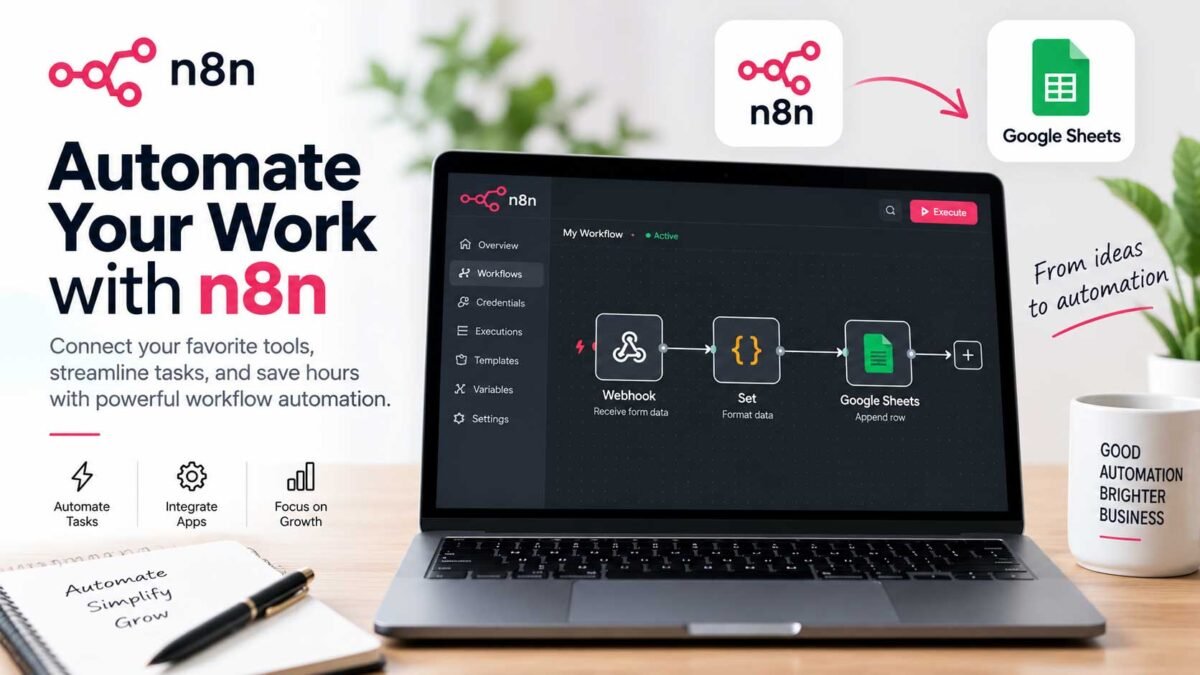
Step 2: Create the n8n Webhook Trigger
- In your n8n dashboard, create a new workflow.
- Add a Webhook node and set the HTTP method to
POST. - Copy the Production URL provided by n8n.
- Paste this URL into your Fluent Forms Webhook settings and save.
Step 3: Save the Lead to Google Sheets
Never lose a lead again.
- Add a Google Sheets node in n8n, connected to your Webhook.
- Set the operation to
Append. - Map the incoming form data (Name, Email, Message) to the corresponding columns in your spreadsheet.
Step 4: Send an Instant Auto-Responder
Speed to lead is critical. Clients expect immediate acknowledgment.
- Add a Gmail (or SMTP) node after the Google Sheets node.
- Set the “To” field to the email address captured from the form.
- Write a warm, humanized email acknowledging their request and letting them know you’ll be in touch within 24 hours.
The Result?
Once this workflow is active, here is what happens when a client visits your site:
- They fill out your contact form.
- n8n instantly catches the data.
- The lead is neatly logged in your Google Sheet.
- The client receives a professional, immediate email confirmation.
- You get a Slack or Telegram notification on your phone that a new lead just came in.
Zero manual work. Zero missed opportunities.
Don’t Want to Build This Yourself?
Automation should save you time, not create more work. If you want a lightning-fast WordPress site paired with a custom, bulletproof n8n automation workflow, I can build it for you.
Contact me today for a free 15-minute automation audit of your current website.