
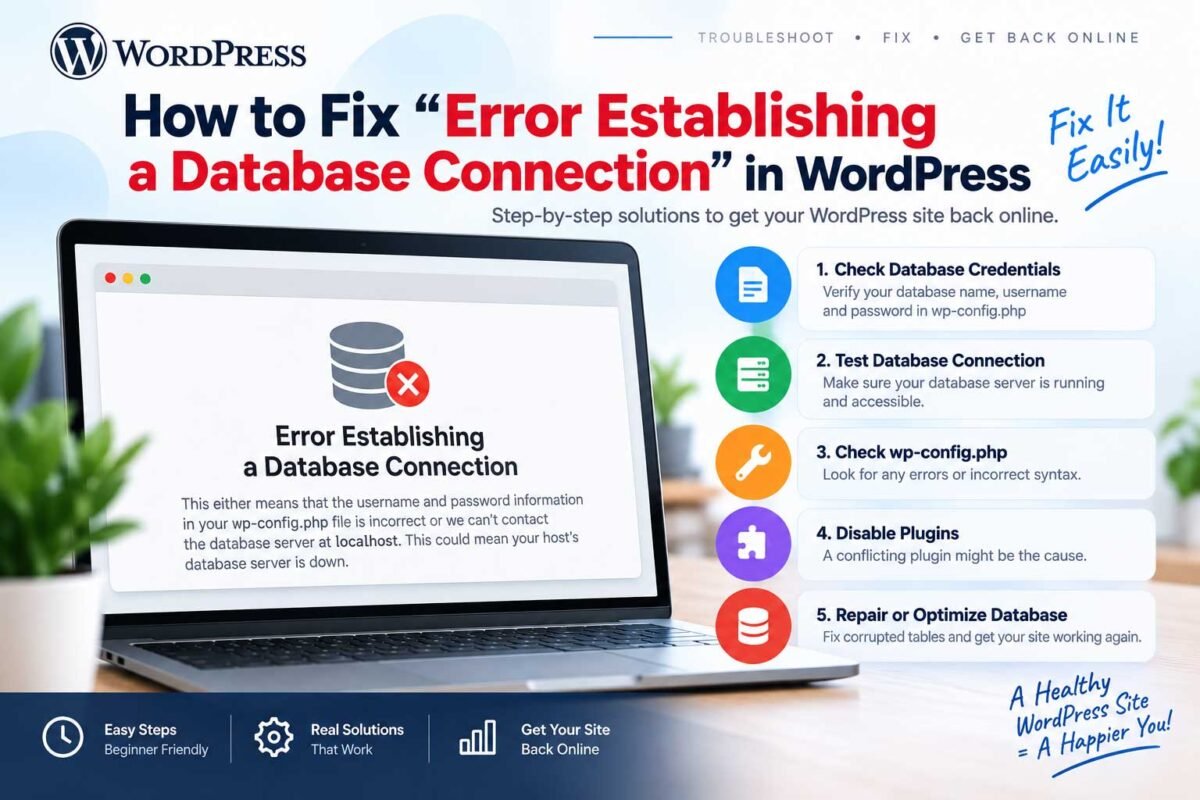
How to Fix “Error Establishing a Database Connection” in WordPress
I’ve been building and fixing WordPress sites for over 10 years now, and if there’s one message that still makes clients call me in a mild panic, it’s this one: The error establishing a database connection message doesn’t tell you what’s actually wrong — it just tells you something is
“Error establishing a database connection.”
No design. No content. Just a blank white screen with that one line staring back at you. It looks scary, but here’s the good news — in almost every case I’ve dealt with, it’s fixable in under 15 minutes, and you don’t need to touch a single line of code to try the first few fixes.
Let me walk you through exactly what causes this error and how to fix it, in the order I actually check things when a client’s site goes down.
What Does “Error Establishing a Database Connection” Actually Mean?
WordPress isn’t just files sitting on a server — every post, page, product, and setting lives inside a MySQL database. When you load a page, WordPress reaches into that database to pull the content and display it.
This error simply means WordPress tried to talk to the database and got no response, or the wrong response. It’s not one specific problem — it’s WordPress’s way of saying “something between me and my database is broken,” which could be a login issue, a corrupted table, a server outage, or a plugin gone rogue.
Common Causes (In the Order I Check Them)
- Incorrect database credentials in
wp-config.php - A corrupted or crashed database table
- The database server itself is down or overloaded
- A plugin or theme update that broke something
- Your hosting account has hit its resource limits
Step 1: Check if It’s a Server-Wide Issue
Before touching any files, log in to your hosting control panel (cPanel, Plesk, or whatever your host uses) and check if the database service is running. If you manage multiple sites on shared hosting and all of them are down, this usually isn’t a WordPress problem — it’s your host’s database server. This is one of the most common reasons sites throw an error establishing a database connection message right after a host outage
Most hosts show a status page or let you restart MySQL directly from the dashboard. If that’s the case, a quick support ticket or live chat with your host will usually resolve it faster than anything you could do on the WordPress side.
If it’s only your site showing the error while others work fine, move to Step 2.
Step 2: Verify Your Database Credentials in wp-config.php
This is the single most common cause I run into, especially right after a site migration or a hosting change.
Connect to your site via FTP or your host’s File Manager and open wp-config.php in the root folder. Look for these four lines:
define( 'DB_NAME', 'your_database_name' );
define( 'DB_USER', 'your_database_username' );
define( 'DB_PASSWORD', 'your_database_password' );
define( 'DB_HOST', 'localhost' );
Log into your hosting control panel and confirm these details match exactly — no typos, no extra spaces. DB_HOST trips people up the most; some hosts don’t use localhost and instead need something like mysql.yourdomain.com or an IP address. Your host’s documentation or support team can confirm the correct value in seconds.
If any of these were wrong, correct them, save the file, and reload your site.
Step 3: Repair Your WordPress Database
If your credentials check out, the next likely culprit is a corrupted database table — often caused by an interrupted update, a bad plugin, or an unexpected server crash.
WordPress has a built-in repair tool you can enable. Add this line to wp-config.php, just above the line that says /* That's all, stop editing! */:
define( 'WP_ALLOW_REPAIR', true );
Save the file, then visit:
yourdomain.com/wp-admin/maint/repair.php
You’ll see two options — “Repair Database” and “Repair and Optimize Database.” Choose the second one. WordPress will scan and fix any damaged tables automatically. Once it’s done, remove the line you just added from wp-config.php — leaving it in place exposes that repair page to anyone who finds the URL.
Step 4: Check for a Plugin or Theme Conflict
If the error started right after installing or updating a plugin or theme, that’s very likely your trigger — even if the connection to the plugin isn’t obvious.
Since you can’t access wp-admin to deactivate plugins normally, connect via FTP and rename the plugins folder inside wp-content to something like plugins-disabled. This deactivates every plugin at once. If your site loads again, rename the folder back to plugins, then rename each plugin’s individual subfolder one at a time, reloading the site after each, until you find the one causing the problem.
Step 5: Check Your Site’s Resource Limits
On shared hosting especially, a sudden traffic spike or a runaway process can max out your database connection limit. Most hosts cap how many simultaneous connections a database is allowed to handle, and once you hit that ceiling, new requests get rejected with this exact error.
Check your hosting dashboard for resource usage graphs, or ask your host directly whether your database hit its connection limit. If this keeps happening, it’s usually a sign you’ve outgrown your current hosting plan.
When to Call in Backup
If you’ve gone through all five steps and the site is still down, it’s worth having a developer take a direct look — especially if there’s a chance the database itself has deeper corruption, or if you’re not fully comfortable working inside wp-config.php on a live site. A wrong edit there can turn one error into several.
Final Thoughts
An error establishing a database connection looks terrifying the first time you see it, mostly because it gives you zero context about what actually broke. But once you know the five usual suspects — credentials, corrupted tables, server downtime, plugin conflicts, and resource limits — it stops being a mystery and becomes a five-minute checklist.
If you’re running a business site and downtime costs you real money, it’s also worth setting up automated monitoring so you know the moment your site goes down, instead of finding out from a customer.
Site down and don’t want to touch the database yourself? Get in touch and I’ll fix it for you.